Email Notifications
Copy page
Copy page as Markdown for LLMs
Open in Claude
Ask questions about this page
Amazon Payment Services offers comprehensive email notification capabilities to keep you and your customers informed about transaction statuses and important payment events.
Notification Types
Amazon Payment Services supports two types of email notifications designed to enhance transparency and improve customer experience:
Customer Notifications
Automated emails sent directly to customers confirming transaction status and payment details.
Merchant Notifications
Real-time alerts sent to your designated email addresses for order status updates and monitoring.
Customer Notification Emails
Customer notification emails are automatically sent to your customers to provide immediate confirmation of their payment status. These emails help build trust and reduce customer service inquiries.
Benefits
- Instant Delivery: Sent immediately after transaction processing
- Multiple Languages: Support Arabic and English languages
- Transaction Details: Complete payment information including amount, currency, and reference numbers
Merchant Notification Emails
Merchant notification emails keep your team informed about transaction activities, especially valuable for businesses that don't use real-time API integrations or webhook notifications.
Benefits
- Real-time Monitoring: Immediate notifications for all transaction activities
- Multiple Recipients: Send notifications to multiple team members
- Backup Communication: Reliable fallback when webhooks or API polling aren't available
- Audit Trail: Email records provide additional transaction tracking
Email Notification Configuration
Setting up email notifications is straightforward through your Amazon Payment Services dashboard. Follow these steps to configure both customer and merchant notifications:
Access Notification Settings
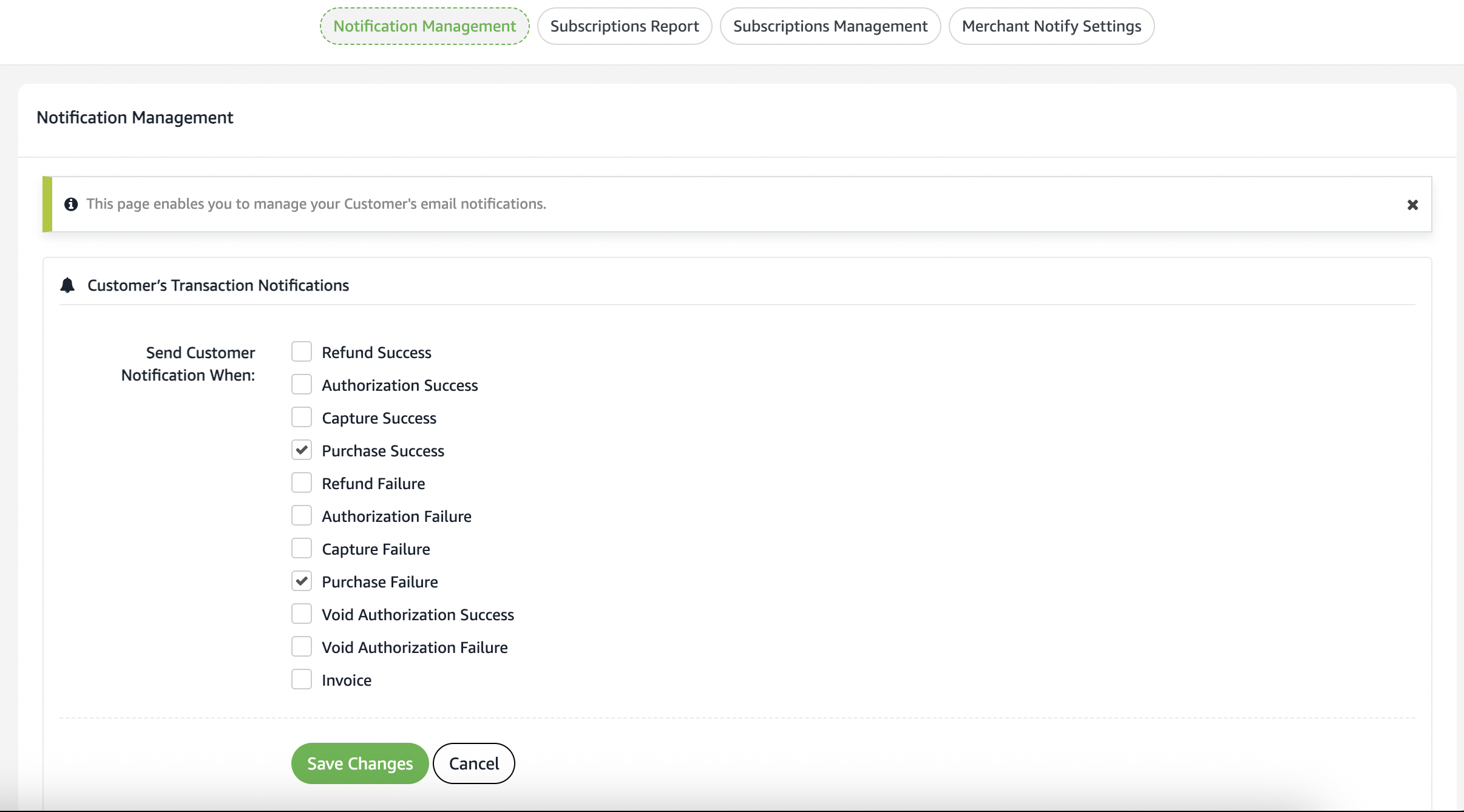
Log in to your Amazon Payment Services account and navigate to the Notification Management tab in your dashboard.
Configure Customer Notifications
Under Customer's Transaction Notifications section:
- Select the events that should trigger customer emails
- Set language preferences if applicable
- Test the email delivery with sample transactions
Set Up Merchant Notifications
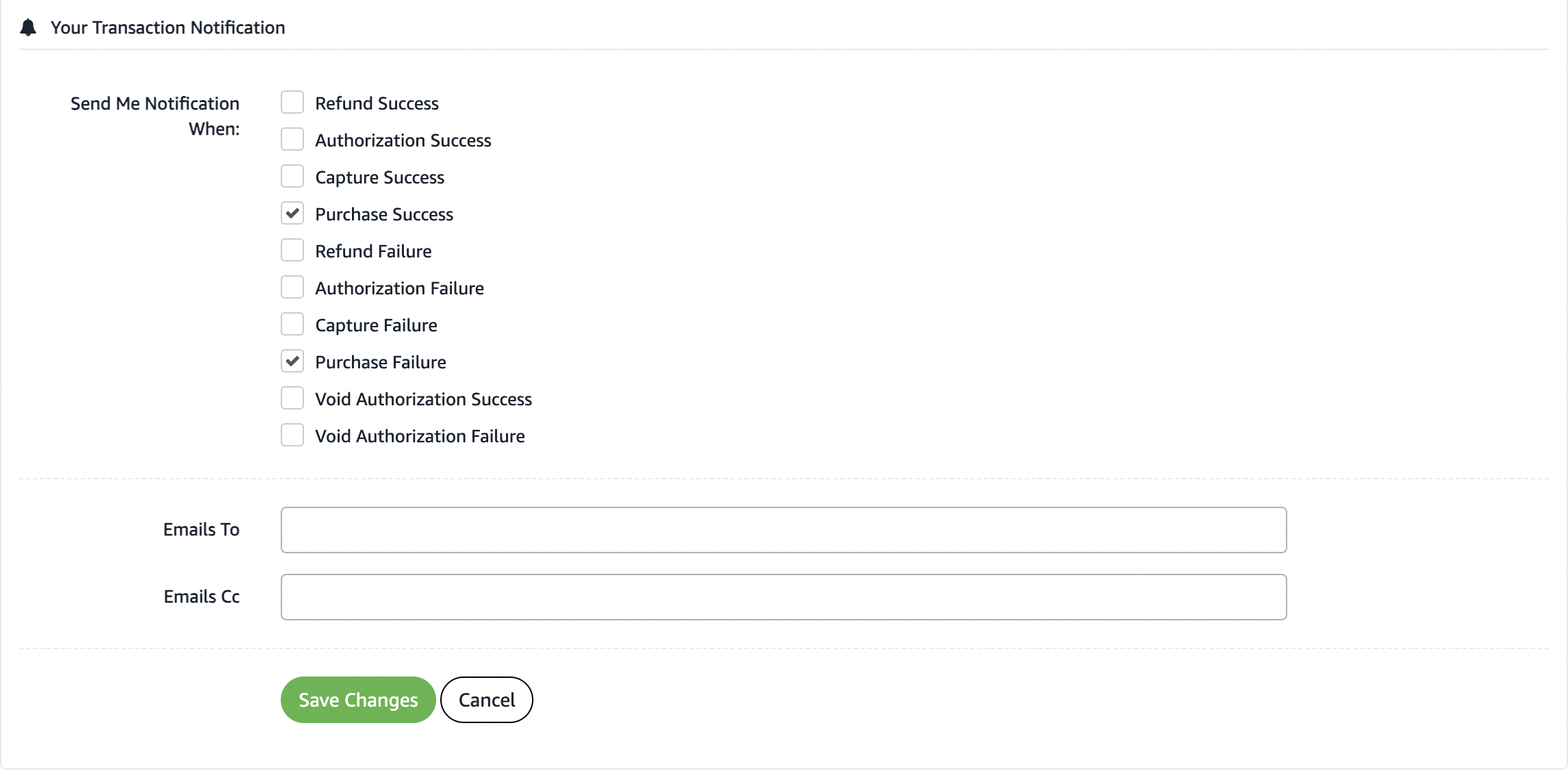
Under Your Transaction Notification section:
- Select which transaction events should trigger merchant emails
- Enter your primary business email address
- Add CC email addresses for additional team members
Save and Test Configuration
Click Save Changes to apply your settings, then perform test transactions to verify email delivery is working correctly.
The following images show the notification configuration interface:
Customer Email Configuration:
Merchant Email Configuration: